 Brunner BI

Advanced optimization for Power BI models with Measure Killer's "Clean Your Model" feature
Removing unused measures and columns is just the start. Clean Your Model finds artifacts that are technically referenced but serve no practical purpose — hidden visuals, dead pages, auto-detected relationships, and more.
Introduction
Deleting unused measures and columns is good practice. It usually reduces model size and can improve refresh and DAX performance.
But optimization goes beyond removing completely unused artifacts. Many elements remain technically referenced within the model despite serving no practical purpose — items appearing only in hidden visuals, inactive pages, or field parameters that users never access.
Measure Killer’s Clean your model feature addresses this gap by identifying not only completely unused artifacts but also unnecessary ones that are still referenced somewhere in your model or reports.
What Measure Killer does
Measure Killer is an analysis tool designed to identify removable artifacts after examining your model. The tool classifies artifacts as unused when they lack any references within the model or connected reports. Artifacts flagged as either unused or “used by unused” can be safely deleted without introducing functional issues — this represents the core mission of the application.
Unused vs. unnecessary
There is an important distinction between the two:
Example 1 — Unused: A column that never appears in any visual or DAX expression.
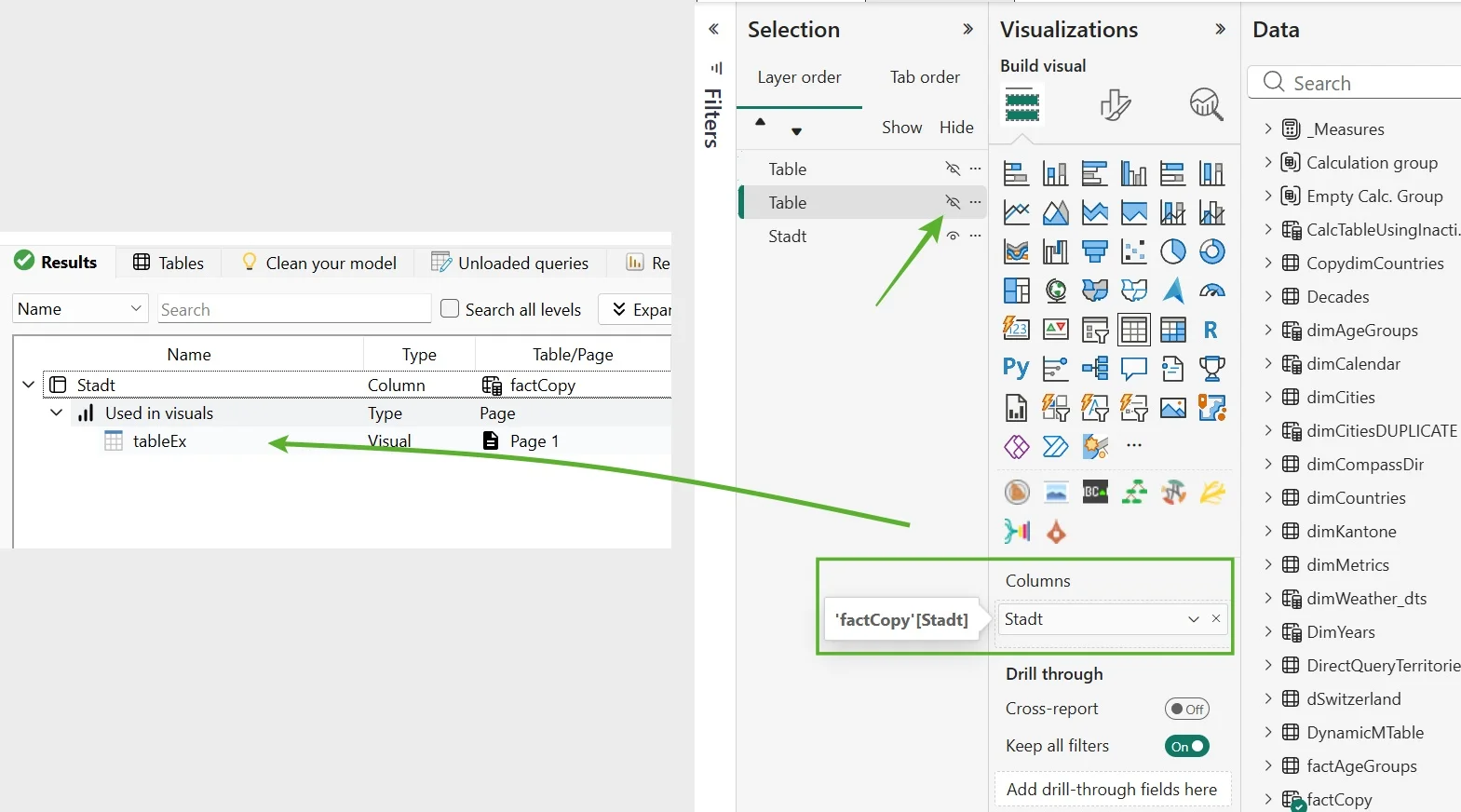
Example 2 — Used but unnecessary: A column that appears in a hidden visual which is never activated by any bookmark.
Measure Killer classifies the first as unused and the second as used. But both are candidates for safe removal in practice. Clean Your Model specifically targets situations like Example 2, where artifacts maintain technical references despite having no practical utility.
How the “Clean Your Model” tab works
After running an analysis, the Clean your model tab presents a curated list of improvement suggestions. Each suggestion addresses a distinct cleanup scenario, potentially including artifacts used only in hidden visuals, pages with zero views, auto-detected relationships, and unused field parameters.
For most suggestions, the tool estimates potential model size reductions.
All “Clean Your Model” suggestions
Most suggestions only appear when the artifact is used in that one single situation, and nowhere else. This prevents false positives when artifacts serve multiple purposes.
1 — Remove unused artifacts
The foundational suggestion. Targets artifacts (tables, columns, measures, relationships) lacking any references or depending solely on other unused artifacts. “Export clean TMDL” is the best and fastest option for bulk removal.
2 — Remove unused DAX variables from artifacts
Scans measures, calculated columns, and tables for DAX variables that are defined but never referenced. Expand the suggestion, right-click an affected artifact, and select “DAX expression with violations” to view highlighted unused variables.
3 — Disable Auto Date/Time
Auto Date/Time is the worst feature ever created in Power BI, and it is on by default. The tool helps by supplying generic calendar table DAX expressions, tracking usage locations for replacement purposes, and guiding you toward disabling this setting in File > Options > Data Load.
4 — Remove field parameter tables that are not actually used
Field parameter tables are a special case due to their self-referential column structure. When a field parameter table exists solely for its own use and nowhere else, the tool suggests deleting both the table and any associated columns or measures used exclusively within it.
5 — Delete relationships connecting to unused tables
These relationships attach one or more model tables to tables that would otherwise remain unused. Delete the relationship first, then remove the orphaned table.
6 — Remove hidden pages not used as tooltips, drillthrough or page navigation
Pages that are hidden, function as neither tooltip nor drillthrough pages, and lack page navigation functionality. Delete these pages and remove any artifacts appearing exclusively on them.
7 — Remove hidden visuals not referenced in bookmarks
Visuals that are both hidden and unreferenced in any bookmark. Delete the visual and any artifacts used exclusively within it.
Important: Personal bookmarks created in the Power BI service are not considered in this suggestion.
8 — Consider removing reports without recent consumption
In Shared Model Online modes, the tool evaluates report consumption data from the Power BI Service. Reports showing zero opens within the past 28 days receive this suggestion.
9 — Remove pages with no views
Targets pages displaying zero views within 28 days. Delete these pages and remove associated artifacts.
10 — Verify if auto-detected relationships are necessary
When “Auto detect new relationships after data is loaded” remains enabled, Power BI automatically creates relationships. This suggestion flags them for verification. Probably the hardest suggestion to apply — verifying if you need an active relationship is usually not straightforward.
11 — Remove artifacts used only in filters without active filters
Some columns appear solely in visual, page, or report-level filters where no active filter query exists (appearing as “is (All)” in Power BI) and no bookmark activation occurs. Remove the filter first, then delete associated artifacts.
12 — Verify columns used only as dynamic M parameters
Columns appearing only as dynamic Power Query parameters in DirectQuery tables and nowhere else. Unbind such columns by opening Model view, selecting the column, and clearing the “Bind to parameter” dropdown.
13 — Verify unused key columns in import mode tables
For Import tables containing key columns that lack other uses. Unmark them as keys, verify that relationships and DAX continue functioning, and delete them if appropriate. DirectQuery and Hybrid tables are excluded.
14 — Verify columns only used as table row labels
Columns marked as Default Label but unused elsewhere. Unmark them, verify that visuals and measures continue working, then delete if necessary.
15 — Consider excluding the semantic model’s default report
In shared (golden) model architectures with multiple connected reports, checks artifacts used only in the dataset’s automatically generated report. Exclude that report from analysis, rerun the tool, and remove artifacts appearing only there.
16 — Disable isAvailableInMdx for columns not used in Analyze in Excel
Columns marked with isAvailableInMdx = true but unused in Analyze in Excel. Disabling this property reduces storage. Modify through either direct TMDL editing or Tabular Editor.
Conclusion
The Clean Your Model tab advances model optimization beyond basic unused artifact removal. It helps identify unnecessary artifacts in scenarios involving hidden visuals, unused pages, auto-detected relationships, and shared dataset reports.
The feature particularly benefits intermediate to advanced Power BI developers pursuing smaller, cleaner models.
If you want to try Measure Killer, you can download it for free or request an enterprise trial.