 Brunner BI

Creating a custom fiscal calendar in Power BI
Use Power Query list generation to build a custom fiscal calendar that maps date ranges to fiscal periods in your Power BI model.
 Gregor Brunner
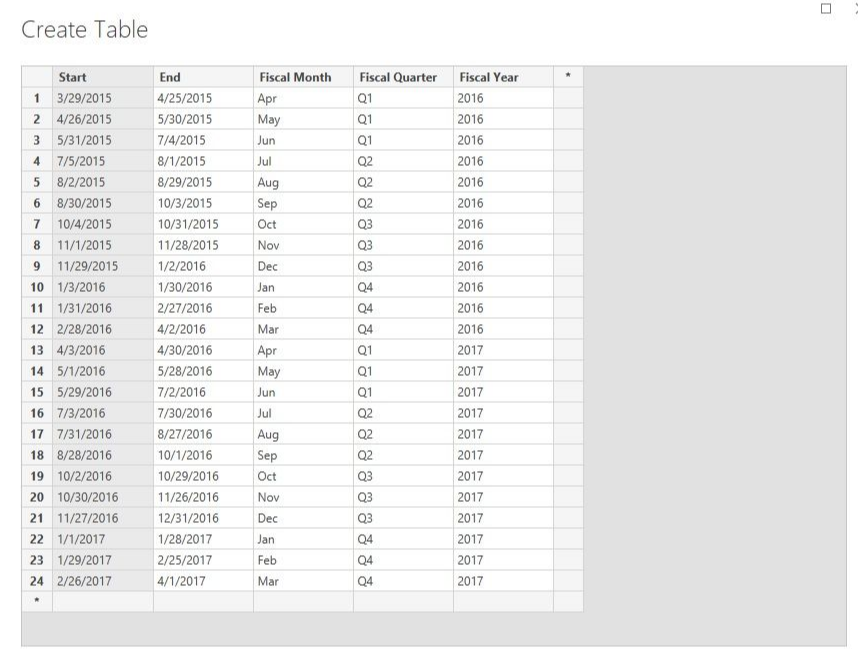
Suppose your client has a pre-defined logic for establishing their fiscal periods. The challenge becomes: how do you integrate this into your DAX date table?
The most straightforward approach involves these steps:
Step 1: Convert Date Columns to Numbers
Transform your date columns into whole number format.
Step 2: Create a Custom Column
Apply the following formula to generate a list in Power Query (M):
{}This syntax creates a list of all numbers spanning between the dates in both columns.
Step 3: Expand the Results
Expand the newly created CustomFiscalDates column “to new rows” to obtain all dates within the respective ranges.
Step 4: Convert Back to Date Format
Transform your number columns back to date format.
Result
Your new table will contain all dates within your custom fiscal date ranges. You can delete the Start and End columns as they’re no longer needed.
Finally, establish the relationship between CustomFiscalDates and your Calendar table’s Date column.
Key Takeaway
List generation in Power Query using {} proves useful across numerous scenarios beyond fiscal calendars.
Originally published on the Power BI Community Blog (March 24, 2020)