 Brunner BI

Format Strings for Calculation Groups in Live Reports
When format string expressions fail for calculation groups in live reports, here is how to fix them using DAX code instead of Tabular Editor's Options field.
 Gregor Brunner
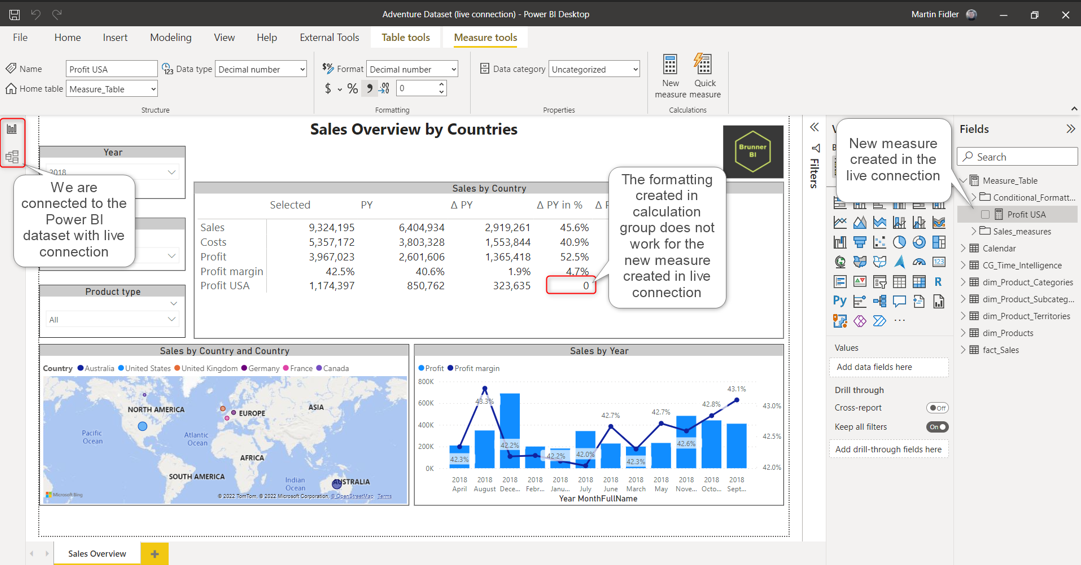
According to guidance from sqlbi, it’s recommended to create format string expressions for calculation groups in the “Options” field within Tabular Editor.
However, when adding new measures directly in live reports, the format string may not function as expected.
The Scenario
- A dataset is being used as the basis for a report via live connection
- The dataset includes a calculation group
- When new measures are added within the live report itself, the format string expression fails to apply correctly (as demonstrated with a “Profit USA” measure created in the live report)
The Solution
Rather than defining the format string expression in Tabular Editor’s Options field, the approach should be:
Leave the Format String Expression empty and instead apply formatting using DAX code.
Using this method, measures created directly in live reports will display with the correct formatting.
Implementation Example
The working calculation item contains this DAX code with an empty format string expression in Tabular Editor:
VAR TY =
    SELECTEDMEASURE ()
VAR PY =
    CALCULATE ( SELECTEDMEASURE (), DATEADD ( 'Calendar'[Date], -1, YEAR ) )
RETURN
    FORMAT ( DIVIDE ( TY - PY, ABS ( PY ) ), "#,0.0%;-#,0.0%;#,0.0%" )
Important Tradeoff
Using the FORMAT() function converts values to text, which prevents their use in charts and other visual elements requiring numeric values.