 Brunner BI

How to mass upload Power BI reports to the Power BI Service
A step-by-step guide to uploading hundreds of Power BI reports at once using a simple PowerShell script.
 Gregor Brunner
This sounds like a strange case but I recently had to find an efficient way to upload over 600 Power BI reports to the Power BI Service.
There is no native way to do this but searching through forums I found a solution using PowerShell.
Requirements
You only need Windows PowerShell ISE (which should be installed on any Windows computer).
Step 1
Make sure you have all Power BI files in one folder on your computer.
Step 2
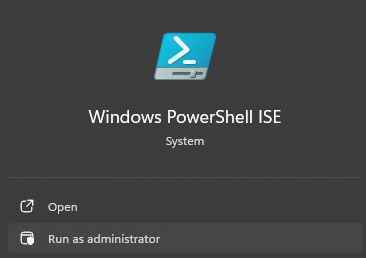
Let us now run Windows PowerShell ISE as an administrator and add the packages required.
For uploading only to your personal workspace run this:
Install-Module -Name MicrosoftPowerBIMgmt.ReportsIf you want to upload to a “real” workspace, paste this code and hit enter:
Install-Module -Name MicrosoftPowerBIMgmt.Reports
Install-Module -Name MicrosoftPowerBIMgmt.Workspaces
You might be asked to install other addons/modules based on your setup.
Here you can find a list of all Power BI Cmdlets for Windows PowerShell.
Step 3
Get a list of all files in a folder.
In my case I had over 600 reports so I did not want to do anything manually.
Get-ChildItem -Path "C:\Users\grego\Downloads\sample-reports" -Recurse -File -NameThe highlighted path needs to be changed to yours.
Step 4
Let us run the script below to start mass uploading files to a Power BI workspace of our choice.
For simplicity I only included two reports in the list below but I have been able to upload over 600 reports using this script. It took about 30 minutes.
Connect-PowerBIServiceAccount
$reports = @(
'100% Clustered Stacked Bar Chart (Pro).pbix',
'100% Clustered Stacked Bar Chart (Standard).pbix'
)

$path = 'C:\Users\grego\Downloads\sample-reports'

$workspaceName = 'other-custom-viz'
$workspace = Get-PowerBIWorkspace -Name $workspaceName

# Iterate through each report in the array and publish it
foreach ($report in $reports) {
    $reportPath = Join-Path -Path $path -ChildPath $report
    $reportName = [System.IO.Path]::GetFileNameWithoutExtension($report)
    New-PowerBIReport -Path $reportPath -Name $reportName -Workspace $workspace
}
You need to change the following fields to make it work with your setup:
- The
$reportsarray with your report filenames $pathwith the local path on your machine where the .pbix files are$workspaceNamewith the name of the workspace you want to upload to
Once you hit enter it will trigger an authentication and then it will start uploading all the reports you listed in the script.
Since it will take some time you can just let it work in the background.
As mentioned above it took me about 30 minutes to upload all 627 reports.
When opening the Power BI Service, you will see the reports coming into your workspace while the script is running.
Having hundreds of models and reports in one workspace is quite a performance nightmare and should be avoided at all costs.