 Brunner BI

Integrating Jira with Power BI
Connect directly to the Jira REST API from Power BI using the web connector and M code -- no third-party tools required.
 Gregor Brunner
When searching for guidance on loading Jira data into Power BI, numerous options appear, though many may not align with independent implementation preferences. This guide demonstrates connecting to the Jira REST API and retrieving project and task data directly into Power BI via the web connector.
While some configuration effort is required to specify desired entities and tables from the API, this approach offers complete flexibility without relying on third-party solutions.
Authentication Setup
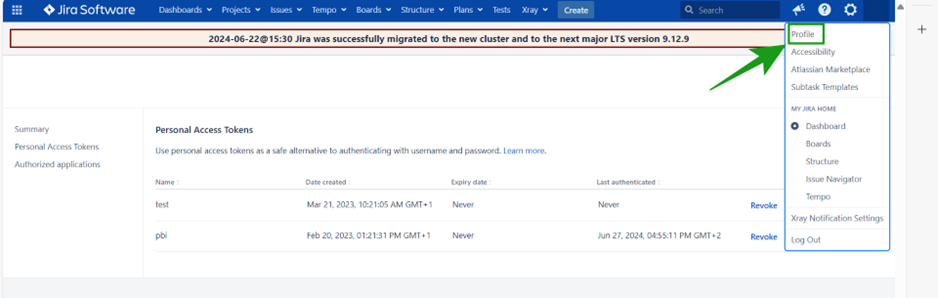
Before extracting data from Jira, obtain a personal access token by:
- Logging into Jira
- Navigating to Profile, then Personal access token, then Create token
Implementation Method
In a blank Power BI report, create a parameter containing the access token, then add a blank query with the following M code:
let
  // Base URL without query parameters
  baseUrl = "https://YOUR_JIRA_URL/rest/api/latest/search",
  // JQL query without encoding
  jqlQuery = "project=PROJECT_NAME",
  // Query parameters
  queryParams = [maxResults = "1500", jql = jqlQuery],
  // Headers
  headers = [Authorization = "Bearer " & #"Access token", Accept = "application/json"],
  // Make the API call without encoding in the JQL query
  response = Web.Contents(baseUrl, [Query = queryParams, Headers = headers]),
  // Parse the JSON response
  json = Json.Document(response),
  issues = json[issues],
  #"table" = Table.FromList(issues, Splitter.SplitByNothing(), null, null, ExtraValues.Error)
in
    table
Configuration Details
- baseUrl variable: Insert your Jira URL here; optionally specify a JQL (Jira Query Language) statement
- JQL statement: In this example, filters issues by specific project name
- maxResults parameter: Set to “1500” to limit retrieved issues; adjust as needed per the official documentation
Key Technical Consideration
Using response = Web.Contents(baseUrl, [Query = queryParams, Headers = headers]) prevents Power BI from creating dynamic data sources, enabling refreshes within the Power BI service.
Conclusion
This approach provides flexibility in specifying retrievable data through baseUrl and JQL definitions. Critically, avoiding dynamic data sources ensures model refresh compatibility with the Power BI service.