 Brunner BI

Removing unused columns and measures in Power BI
Use Measure Killer to identify and eliminate unused columns, measures, and calculated columns from your Power BI models for better performance.
 Gregor Brunner
This article explains how to leverage Measure Killer, a specialized tool, to identify and eliminate unused elements from Power BI reports and models.
Getting Started
Download Measure Killer from the Microsoft Store or official website. A free trial covering all features is available. The tool operates in two modes, with both available in the free version.
Initial Setup
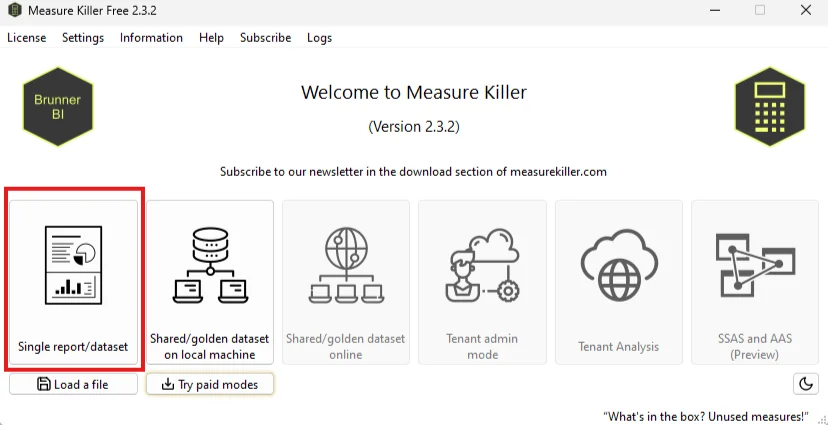
After launching the application and selecting mode 1, you will see a window displaying the currently active Power BI Desktop report. The tool requires that the report you have currently open in Power BI Desktop is preselected. If multiple Power BI files are open, selecting the correct file is essential.
Analysis Phase
Upon clicking “Run” and confirming the correct report selection, the tool generates comprehensive results showing model efficiency. A summary in the bottom left corner displays utilization metrics as a percentage calculation based on the size of all columns used divided by all columns.
The main window lists all columns, calculated columns, and measures, indicating their usage status. “Used” means a column is referenced in a visual, conditional formatting, filter or via a measure etc. It even checks Power Query (used in a join and so on).
Removal Process
For .pbip files: Automatic removal in a single click creates a new optimized file.
For .pbix files: A semi-automatic process applies:
- Measures and Calculated Columns: Removed via a “Kill” button with a “Restore” feature for reversals
- Power Query Columns: Manual removal using generated M code inserted into the Advanced Editor
Users copy provided M code and paste it into the appropriate Power Query Advanced Editor, adding a single step that removes unused columns.
Verification
After completing all removal steps and refreshing, running Measure Killer again should display “100% used” in the summary metrics.
Important Note
The file size displayed in brackets may appear inaccurate until Power BI is restarted following query modifications.