 Brunner BI

Semantic model storage modes across an entire tenant
Use Measure Killer to analyze storage modes of all semantic models across your Power BI tenant, including Import, Direct Query, Composite, and Direct Lake.
 Gregor Brunner
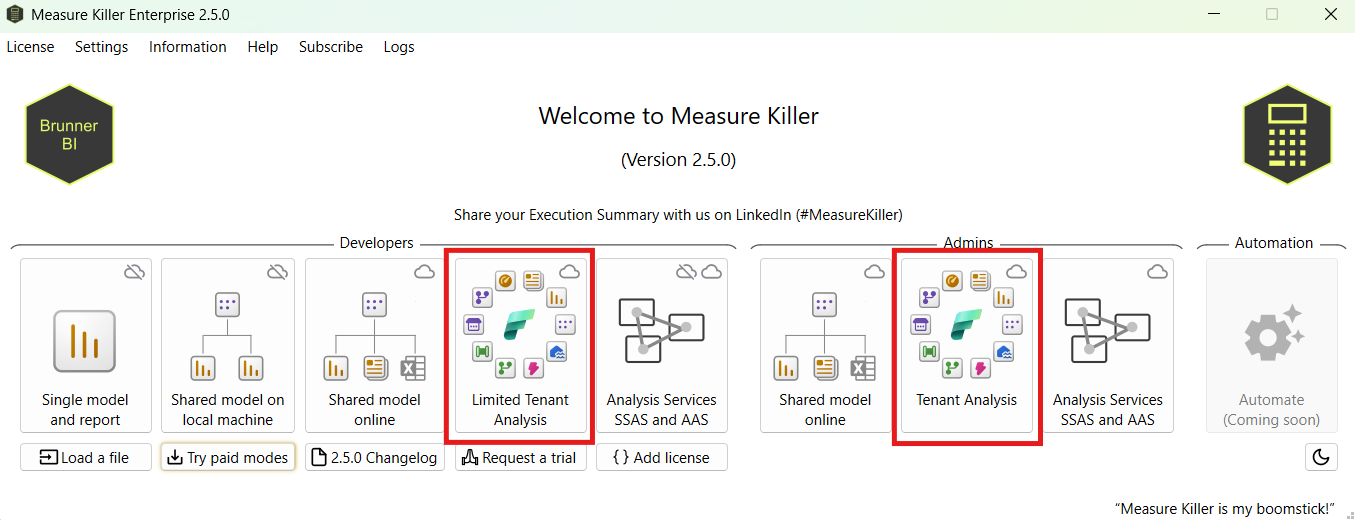
Measure Killer offers valuable insight into tenant-level storage modes of semantic models, enabling organizations to examine all models across Premium/Fabric and Pro workspaces, plus Personal workspaces for tenant administrators.
Understanding the distribution of Composite and Direct Query models helps organizations gain visibility into Power BI usage patterns across the enterprise.
A free trial is available upon request.
Getting Started
Begin by selecting one of two Tenant Analysis modes, depending on your administrative role:
- Tenant Analysis mode (for Fabric Admins or Power Platform Admins)
- Limited Tenant Analysis mode (for users with restricted permissions)
Step-by-Step Process
1. Set Filters
Select desired analysis filters and click “Next”.
2. Select Models
In the “Selection” tab, choose semantic models and workspaces for analysis, then click “Run”.
3. Authenticate
After authentication, Measure Killer fetches metadata and populates all analysis tabs.
4. Review Results
Navigate to the “Semantic models” tab to view storage mode information.
Storage Modes Displayed
The analysis reveals four distinct storage mode types:
- Import: Data fully imported/duplicated into the semantic model
- Direct Query: Data queried directly from source systems like databases
- Direct Query, Import: Hybrid approach (composite models)
- Direct Lake: Fabric-exclusive mode offering superior performance versus Direct Query
Exporting Data
Export the semantic models list as an .xlsx file for further analysis. After removing duplicates in Excel, the storage mode information appears in column P of the resulting table.